









How to install Microsoft Project Software from O365 Online

Contents
Introduction
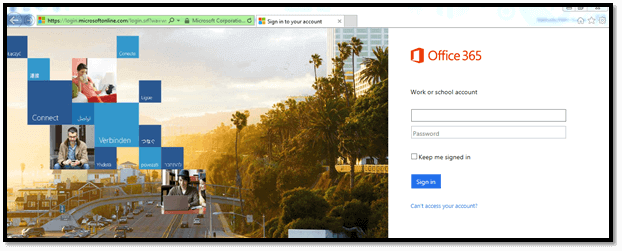
Click this URL to login into the Office 365 account.
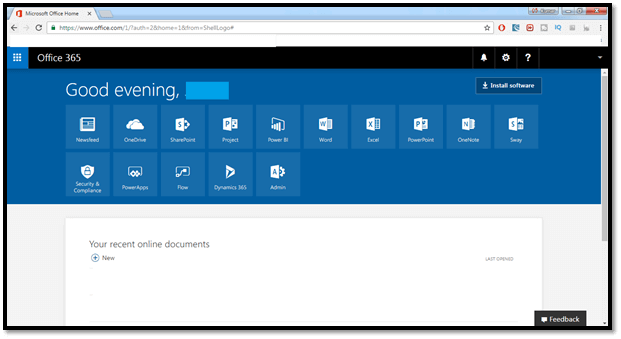
Once you log in, you can see the Office 365 landing page, as shown below.
There are different lists of sites like newsfeed, SharePoint, Project etc.
In this blog, we will mainly focus only on the project software installation process.

Click on Install software at the top right corner.
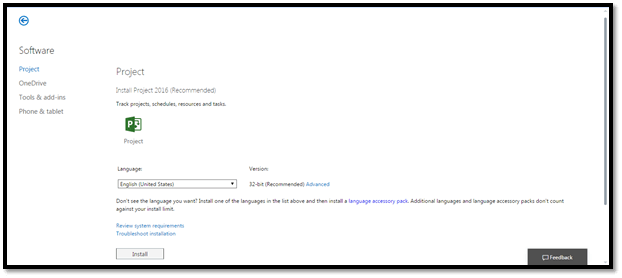
Once you click on Install software, My Software will be opened in a new tab.
From the left side quick launch, you can see the list of software to install.
Project
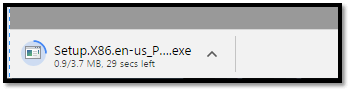
By default, Project is selected. Select language as English and the version as 32-bit, which is highly recommended by Microsoft, and click install.
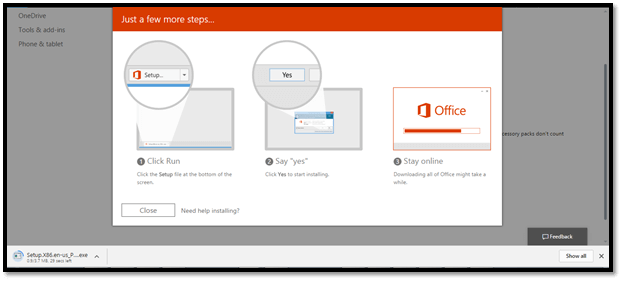
Once you click install, a popup window appears, as shown below.
From the screenshot shown above, you can also observe that Setup file is downloading.
Once you finish your download, open and run it as an administrator to install in your machine.
One-Drive
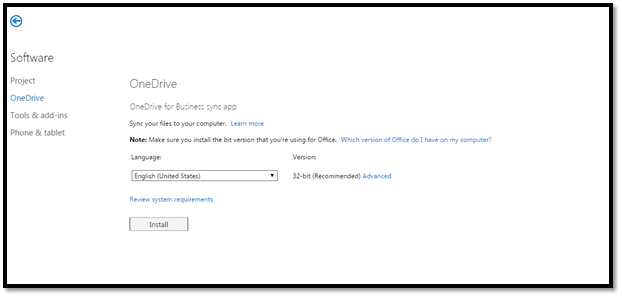
Now, select One Drive option and also set language as English and Version as 32-bit, which is highly recommended by Microsoft, and click install.
*Follow the same steps as discussed for Project.
Tools & add-ins
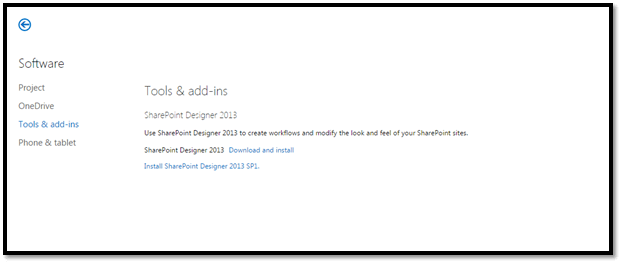
In this option, we can download SharePoint Designer 2013 to create Workflows, and modify the look and feel of your SharePoint sites.
Phone & Tablet
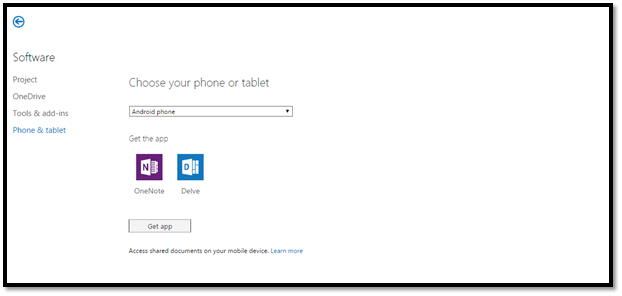
In this option, you can select the device and get the list of apps which support your selection of device and install those apps into your mobile.
Click get apps button and follow the instructions which are presented for your device.
Tags
trending posts


