









How can I join my Microsoft Teams meeting from my mobile?

- 1. Remember to use video when joining a Teams meeting
- 2. Switch on live captions from the Teams mobile app when there is lots of background noise
- 3. Present your PowerPoint presentation in your Teams meeting from the Teams mobile app
- 4. Add your mobile device as an second device in a Teams meeting to share your video or screen
Contents
- 1. Remember to use video when joining a Teams meeting
- 2. Switch on live captions from the Teams mobile app when there is lots of background noise
- 3. Present your PowerPoint presentation in your Teams meeting from the Teams mobile app
- 4. Add your mobile device as an second device in a Teams meeting to share your video or screen
You don’t need to sit at your desk to join a Microsoft Teams meeting. The Teams mobile app allow you to join your Microsoft Teams meeting from wherever you are.
Whether this is going for a walk, just wanting to get away from your desk or needing to find a quiet place. Its so easy to join your Microsoft Teams meeting using the Teams mobile app on either your iOS or Android mobile device.
Here are my four top tips for joining a Microsoft Teams meetings from the Teams mobile app.
1. Remember to use video when joining a Teams meeting
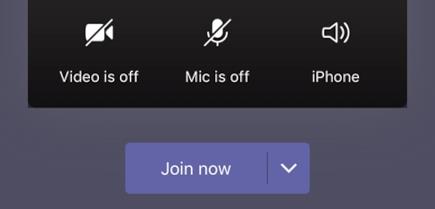
Top tip one is about the benefits of using video in meeting. Switch on your video to fully engage with the other meeting attendees.
In addition to switching on your video there are several different video layouts you can select. The video layouts options will depend on the size of the meeting and the number of people you’d like to see on your screen. If you’re using a tablet, you’ll see up to nine video streams at once by default.
You even have the ability to spotlight a video for everyone, pin a video just for yourself or blur your background.
Source Microsoft
Microsoft have a great guide on Using video in Microsoft Teams – Office Support
2. Switch on live captions from the Teams mobile app when there is lots of background noise
Often people will use a mobile phone when out of the office or travelling. Often it can be hard to hear what people are saying if you are in an area with lots of background noise. Such as outside with a busy road nearby or working in an area with machinery.
This is when live captions can be useful to allow you to easy see what people in the meeting are saying. Once you have joined the Teams meeting via the mobile app select the three dots and select Tu
on live captions. This will display the live transcripts of the meeting. Note this feature only works when the language spoken is English (US).
Just remember that if you are in a noisy location keep your microphone on mute until you need to speak.

Source Microsoft
Microsoft have a great guide on how to Use live captions in a Teams meeting – Office Support (microsoft.com)
3. Present your PowerPoint presentation in your Teams meeting from the Teams mobile app
There are times when you need to present at a Teams meeting but know that you won’t have access to a computer at the time of the meeting.
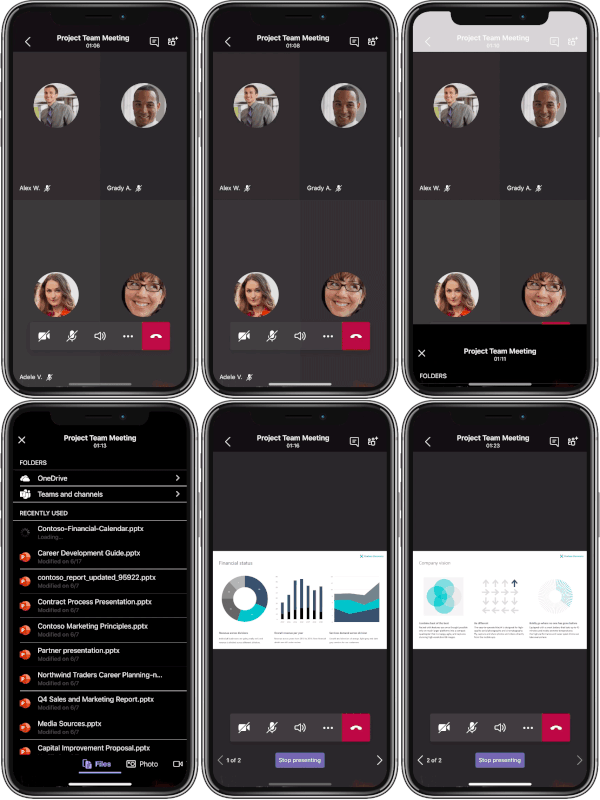
Just save your PowerPoint in OneDrive, SharePoint or your Team. Then you can share your presentation directly from your mobile device. The process is very similar sharing in the Teams desktop app.
Once you have joined the meeting on your mobile device select the three dots and select Share.
Alte
atively you can share a photo, a video and even share your screen if you need to show other applications.
Source Microsoft
4. Add your mobile device as an second device in a Teams meeting to share your video or screen
There are two really good use cases for this.
The first is when you need to demonstrate functionality on your mobile device. In this scenario add your mobile device as the second device. Then share your screen to display everything on your mobile.
The other use case when you running a hybrid team meeting with several people physically attending the meeting but you only have your laptop. If you are presenting then the laptop camera will be facing your direction and will not capture everyone in the room. Add a second device as a video feed to allow everyone in the room to be seen by the remote Teams meeting attendees.
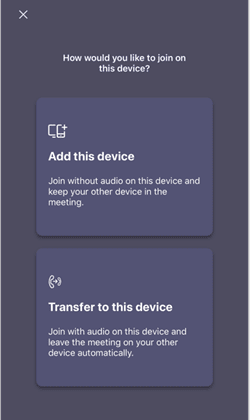
Join the Team meeting on your computer then open the Teams app on your mobile device and Join the meeting. Select Add the mobile device to the meeting without audio. Then switch on video on your mobile and position your device so that the other meeting attendees can be seen in the Teams meeting. Importantly adding the device will ensure that the audio is muted to stop any feedback noise.
Source Microsoft
Alte
atively you have the option to Transfer to your mobile device. This allows you to move your Teams meeting from your desktop to mobile. During the Teams meeting open up the Teams app on your mobile and select Transfer to this device. Your Teams meeting will immediately transfer to your mobile device ensuring that you do not miss any of your meeting.
Microsoft have a great guide on how to Join a Teams meeting on a second device – Office Support (microsoft.com)
Recommended Blog: Microsoft Teams and Meeting Notes Tab
About the Author:
Nikki Chapple is a Principal Cloud Architect at CloudWay and Microsoft Most Valuable Professional (MVP) in Office Apps and Services.
Nikki specialises in Microsoft 365 gove
ance, compliance and adoption; balancing the need for both security and productivity. She is a regular speaker who has presented at conferences such as South Coast Summit, Commsverse and M365 Chicago and Teams10X as well as user groups.
She was one of the co-authors of The Microsoft 365 Maturity Model – Gove
ance, Risk, and Compliance Competency is on the organizing committee for Teams 10X and is also an advocate for women in technology.
Nikki has 30 years’ experience covering both IT and business roles and prides herself on delivering a holistic and risk-based approach to digital transformations.
Nikki holds multiple certifications from Microsoft including the Certified Enterprise Administrator Expert and is also a TOGAF qualified Enterprise Architect and PROCSI qualified Organisational Change Manager.
Her motto is “Microsoft 365 gove
ance and compliance is not a project it is a lifestyle. It needs to be embedded into the culture of the organization”.
Reference:
Chapple, N. (2022). How can I join my Microsoft Teams meeting from my mobile?. Available at: https://nikkichapple.com/joining-teams-meetings-from-the-mobile-app/ [Accessed: 12th September 2022].
Tags
trending posts


