






Using SharePoint Lists with Microsoft Copilot Studio

Contents
Using SharePoint Lists with Microsoft Copilot Studio
5 minute read
Overview
SharePoint lists offer a powerful solution for businesses looking to centralize data management, streamline processes, foster collaboration, and drive productivity across various business scenarios. Over the past 2 decades, organizations have been using SharePoint to store relevant information.
This article is all about how we use SharePoint lists to find answers in Microsoft Copilot Studio. We will discuss the importance, implementation, and limitations of this approach.
Sample SharePoint List Content
For the demonstration purpose of this article, I have set up a SharePoint list as follows:
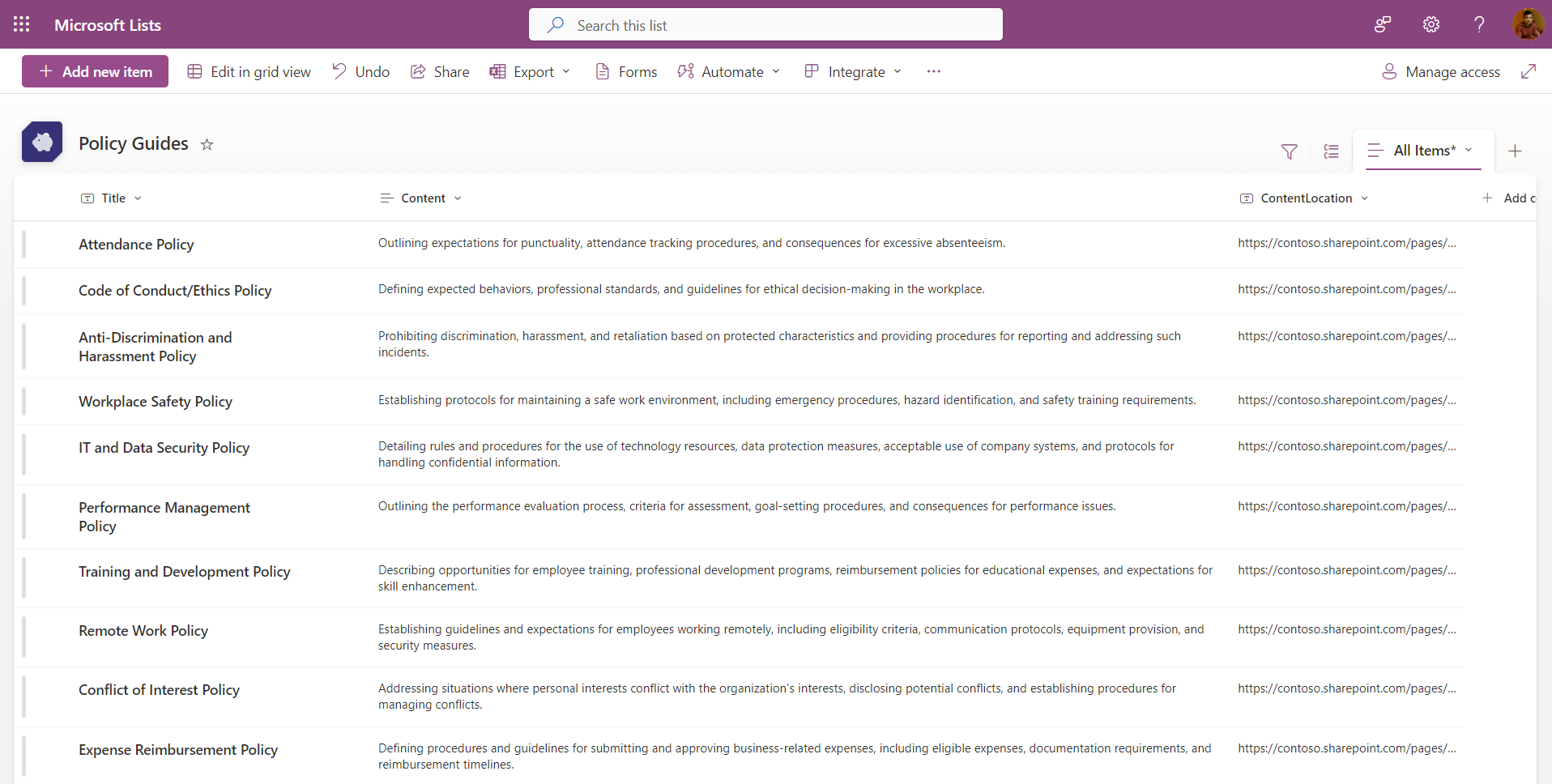
The schema is as follows:
| Column | Description |
|---|---|
| Title | Title for the citation of the source content |
| Content | Source content that is used to be summarized and answer the input question. |
| ContentLocation | URL for the citation of the source content |
The custom data source for generative answers in Microsoft Copilot Studio expects the following schema:
[
    {
        Content: "Sample content description",
        ContentLocation: "https://contoso.sharepoint.com/...",
        Title: "Contoso Sample"
    },
...
]
Power Automate Flow to generate custom data source
We will make use of Power Automate flow to generate the custom data source. This flow needs to be created and configured from the Microsoft Copilot Studio.
However, for better readability of this article, we will start with the Power Automate part first.
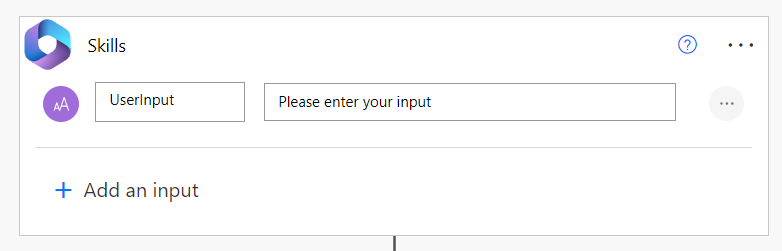
Part 1: Flow input
The input will be passed on from the Copilot as a user query.
Part 2: Extract the entity
Users will interact with the Copilot using natural language (e.g., tell me about remote work policy). From these queries, we need to extract the entity (e.g., remote work policy) of the user query.
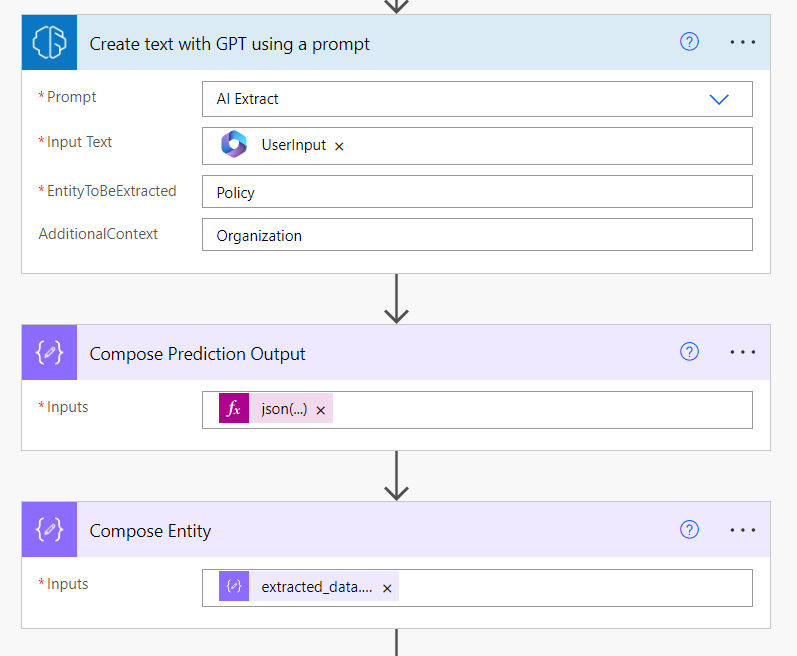
Create text with GPT using a prompt:
First, we will make use of this action to extract the entity from the given prompt, generated by the GPT model.
Compose Prediction Output:
The output from the above activity will be generated in a format as follows:
{
    "extracted\_data": {
        "Policy": {
        "value": "remote work policy",
        "type": "text"
        }
    }
}
Specify the input to the activity as follows:
json(outputs('Create_text_with_GPT_using_a_prompt')?['body/responsev2/predictionOutput/text'])
Compose Entity:
To get the exact policy value from the above JSON, we will use below formula:
@{outputs('Compose_Prediction_Output')?['extracted_data']?['Policy']?['value']}
Part 3: Get and filter SharePoint list items
We will now use the Get Items activity to get the SharePoint list items and map the list columns to the schema preference of custom data supported by Copilot Studio.

We will now filter the items from the SharePoint list by comparing the title column value with the value retu
ed from the Compose Entity.

The formula is as follows:
| toLower(item()?[‘Title’]) | contains | toLower(outputs(‘Compose_Entity’)) |
|---|---|---|
Part 4: Retu
the output to Copilot
Let us parse the JSON first from the below sample:
[
    {
        "Title": "Remote Work Policy",
        "Content": "Establishing guidelines and expectations for employees working, including eligibility criteria, communication protocols, equipment provision, and security measures.",
        "ContentLocation": "https://www.contoso.com/remote-work-policy.html"
    }
]

Create a Copilot in the Microsoft Copilot Studio
Follow the below steps to set up a Copilot:
- Navigate to Microsoft Copilot Studio at https://copilotstudio.microsoft.com.
- Create a new Copilot named “Policy Guide”.
- From the left menu, click Generative AI and enable the option to Boost conversational coverage with generative answers.
- In the Instructions box provide information about how the copilot should behave or respond to users. For example: You are a policy assistant that helps people find information about organization policy.
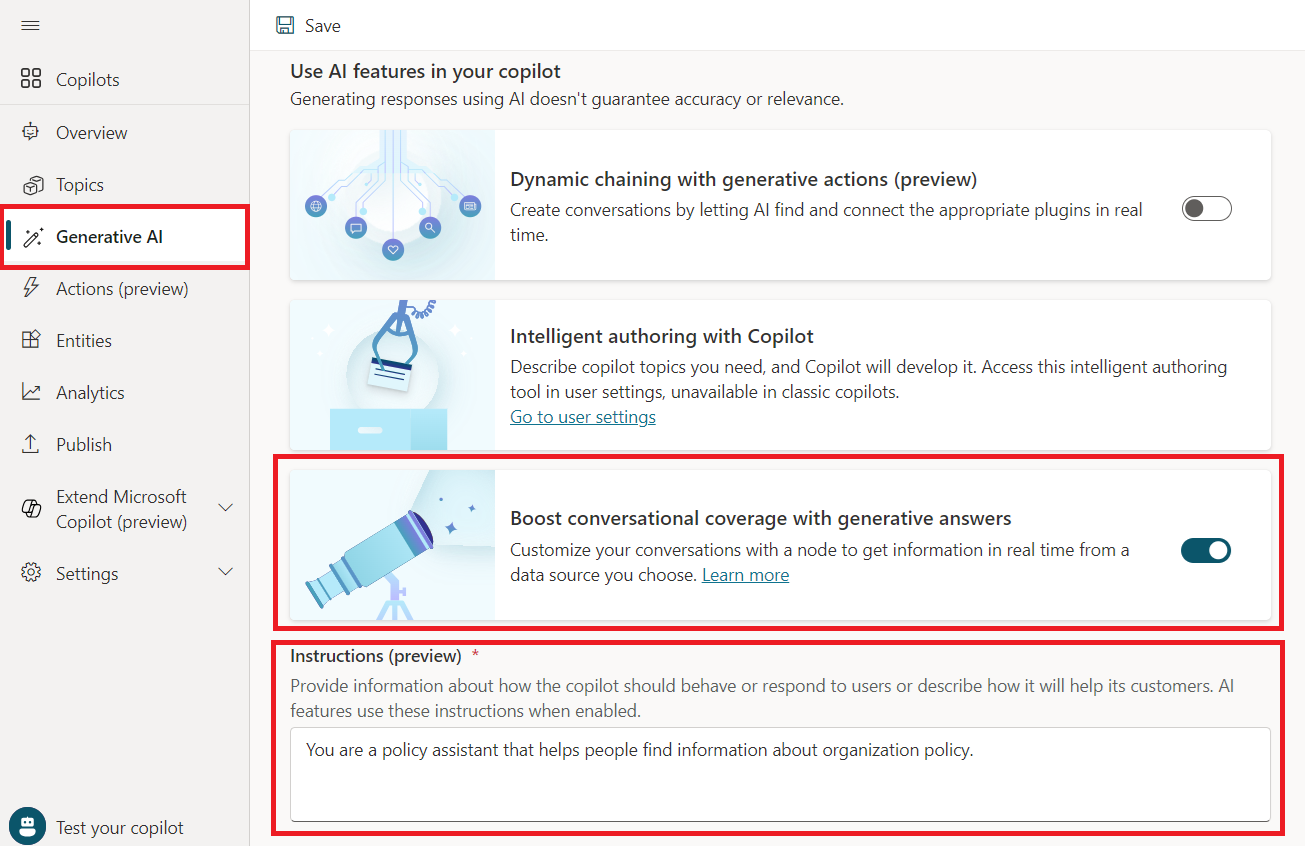
- Click Save.
- Open the Conversational boosting topic.
- Add an action to call the Power Automate flow, we created in the previous step and store the output in a variable (e.g. PolicyInformation).
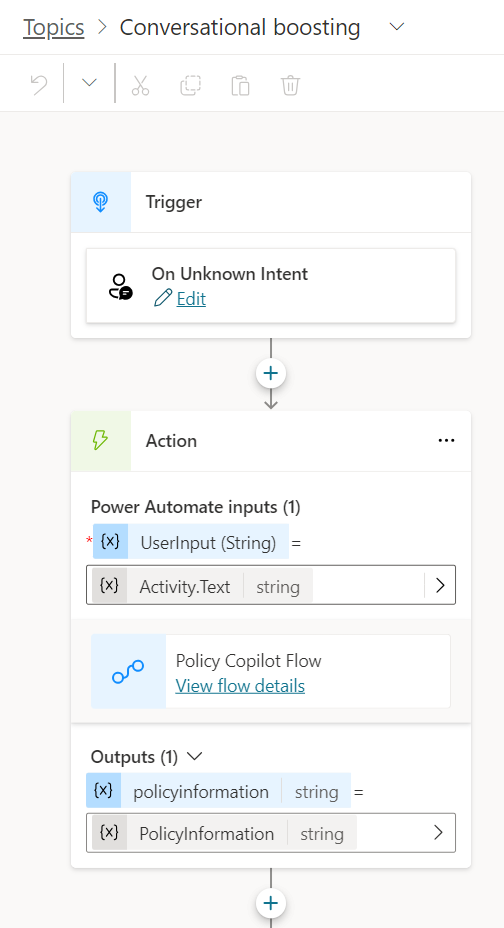
- Parse the string variable to a table (e.g. VarPolicyInformationResponse).
- Add the Create Generative Answers node and configure the Custom data with the table variable.

Publish and test the Copilot
Publish Copilot and test it inside the Microsoft Copilot Studio.

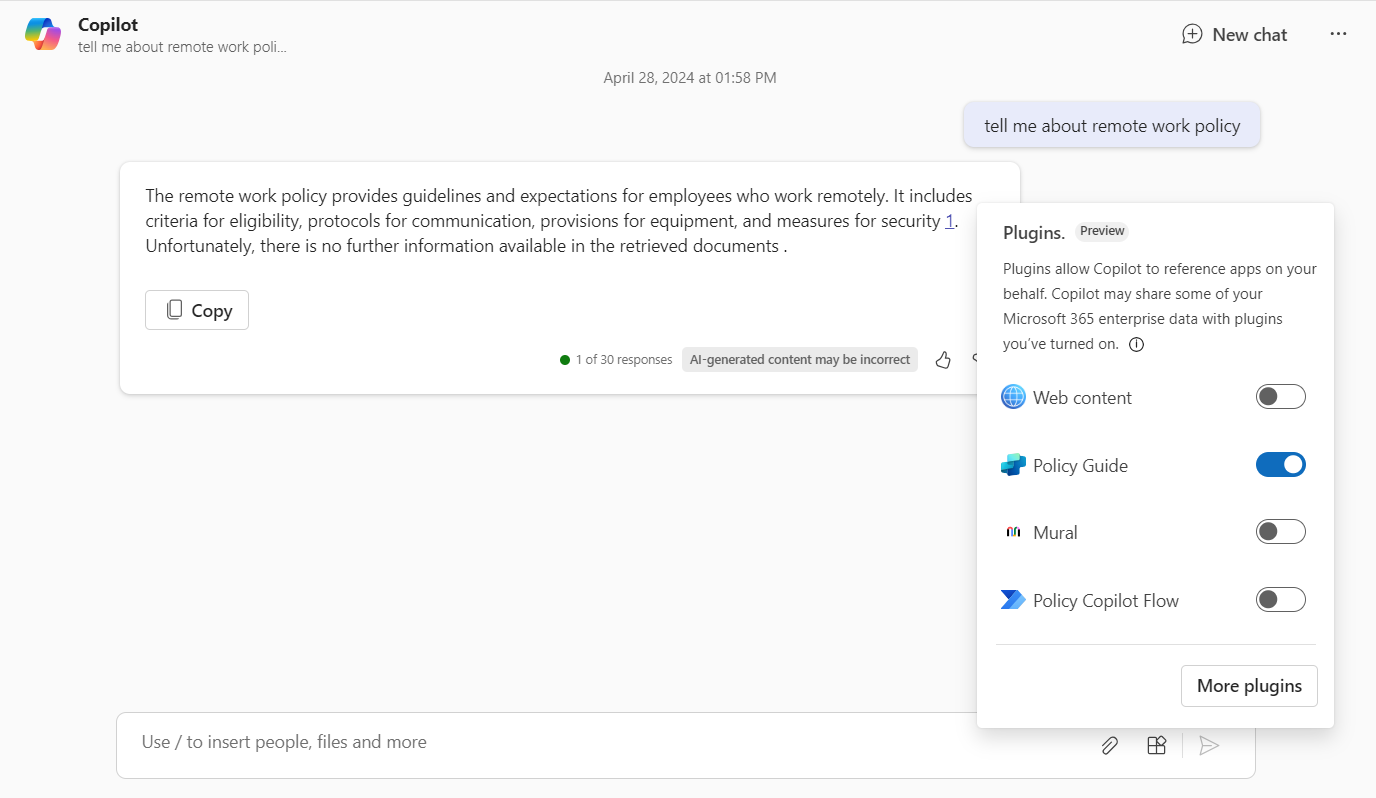
The Copilot experience from MS Teams is as follows:
Limitations
Although this approach works, there are some limitations worth noting:
- We can specify a maximum of 3 custom data JSON.
- This approach still uses keyword-based search instead of vector-based search.
Troubleshoot
If you face the below error:
Error Message: The flow ‘XXXXXX’ failed to run with response code ‘BadRequest’, error code: NotSpecified. Error Code: FlowActionBadRequest

Follow the below steps to fix the issue:
- Open the flow in Power Automate.
- Click Details.
- Under Run only users, click Edit.
- Make sure all connections are configured with the Use this connection option.
Summary
Microsoft Copilot Studio does not support SharePoint lists as a data source. This limitation can be overcome by using the approach outlined in this article considering the known limitations.
About the Author

Microsoft 365 Consultant | Microsoft MVP (M365, AI Platform) | MCT | TOGAF® 10 | Microsoft 365, AI, SharePoint, MS Azure, Power Platform | Public Speaker | Published Author | Blogger
Reference:
Nachan, N (2025). Using SharePoint Lists with Microsoft Copilot Studio. Available at: Using SharePoint Lists with Microsoft Copilot Studio – Nanddeep Nachan Blogs [Accessed: 27th March 2025].


