






How to track comments with “append changes” functionality in SharePoint List

Contents
INTRODUCTION
Here is a business scenario for you. You have a SharePoint list and would like to capture comments from the users. However, here is a twist. You want to capture the whole history/audit trail of all the comments users typed in, without the danger of user accidentally deleting comments left by the previous user edits. An example that could benefit from this use case is some sort of Help Desk SharePoint list or a Vacation Request Approval list where you want to capture all the comments left by all the users. You might also need this functionality on a Task List, where you want to keep all the comments related to a particular task together. Luckily, achieving above scenario in SharePoint is very easy via “Append Changes” functionality. Let me explain step by step how to make it possible.
STEP 1: ENABLE VERSION HISTORY ON A LIST
To enable versioning, follow the instructions below.
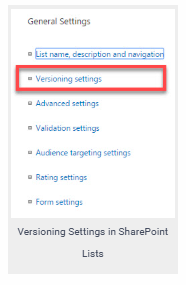
- Go to the list settings, then click on Versioning Settings
2. Under Item Version History, switch Create a version each time you edit an item in this list? radio button to Yes. Click OK
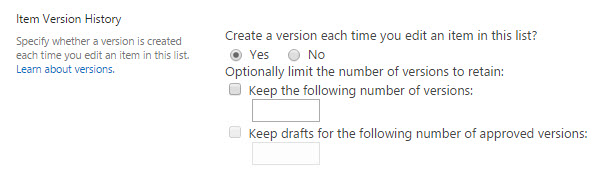
Item Version History
STEP 2: CREATE A NEW “MULTIPLE LINES OF TEXT” COLUMN
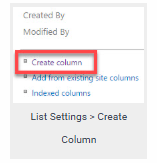
- Unless you have it already, go ahead and create a new column (List Settings > Create Column)
2. In the example below, I am setting up a column on a Task List web part, so I can track Task comments. Make sure to choose Multiple lines of text for the column type
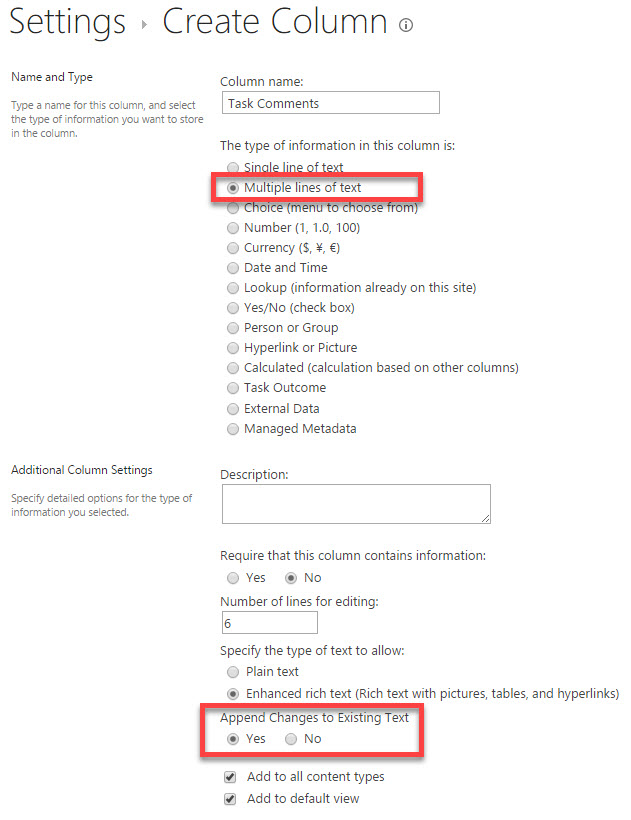
3. At the bottom of the “create a column” screen, switch Append Changes to Existing Text radio button to Yes. Click OK
STEP 3: CONFIGURE VIEW
This step is optional and is more of a personal preference. If you decide to display the column you created in the view, you will notice a clickable “View Entries…” link appear next to each item. That is because your comments now are not just one entry, but rather several distinct entries in one column. So it is not practical to display all lines of comments/text on this screen. To view all of them, just click on View Entries…
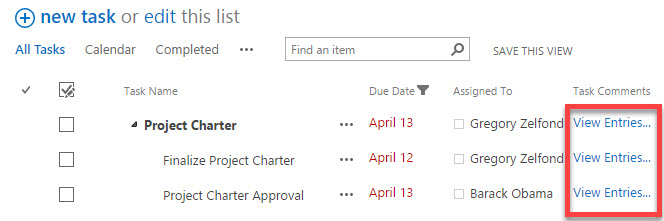
View Entries…
So now when you either click on the item itself or View Entries…, you will be able to see the whole log of comments. Enjoy!
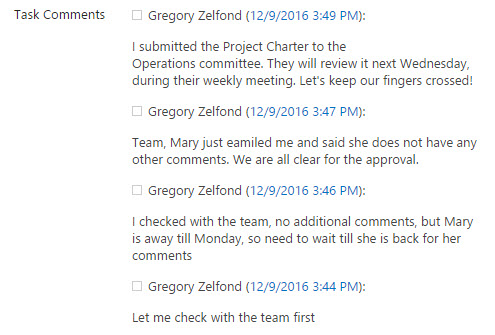
View the item itself or View Entries
NOTES:
- Append Changes to Existing Text functionality is only available on the SharePoint Lists, not document libraries.
Reference
Zelfond, G. (2017). How to track comments with “append changes” functionality in SharePoint List – SharePoint Maven. [online] Available at: http://sharepointmaven.com/how-to-track-comments-with-append-changes-functionality-in-sharepoint-list/ [Accessed 29 Jun. 2017].


