






Connecting Azure SQL Server with Azure Machine Learning

Contents
Accessing data in different data sources is one of the main tasks in machine lea
ing model development life cycle. Let’s discuss one of the most common data accessing scenarios.
Scenario :
We have to set of relational data points stored in a Azure SQL server to develop a machine lea
ing model using Azure Machine Lea
ing. Let’s see how to leverage data stored in an Azure SQL database in an Azure Machine Lea
ing experiment.
The process contains three main steps.
- Set access permissions of Azure SQL database
- Connect Azure SQL database to an Azure ML datastore
- Register the data in datastore as an Azure ML dataset.
1. Set access permissions of Azure SQL database
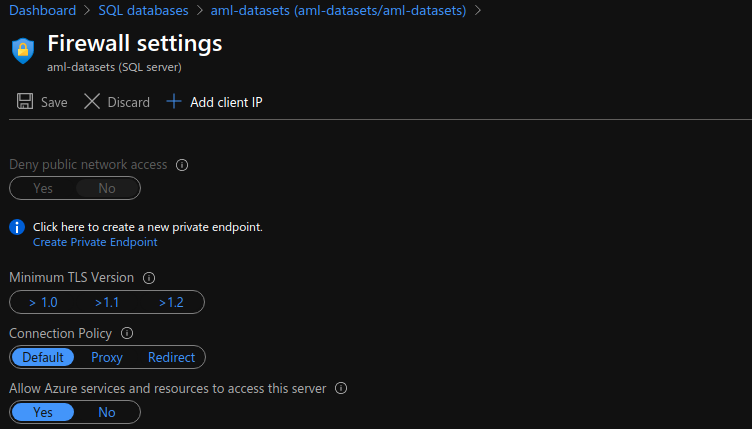
By default Azure SQL databases are protected with a firewall which limits outside access for data. Since we going to provide access for the traffic from Ips belongs to Azure resources and services, make sure you allow Azure services to access your SQL server.
2. Connect Azure SQL database to an Azure ML datastore
Azure ML datastores can be defined as the abstraction of data sources for the ML workspace or as the interconnection between the data resource and AzureML workspace.
Go to your Azure Machine Lea
ing Studio (ml.azure.com) and click ‘New datastore’. Provide a datastore name and select ‘Azure SQL database’ as the datastore type. Make sure to authenticate the access with Azure SQL server’s user ID and the password.

3. Register the data in datastore as an Azure ML dataset.
AzureML supports two types of datasets (Take a look here to get an overview on the difference between those). Since we are dealing with a set of relational data, Tabular dataset is the option we have to use for creating the dataset.

Select ‘Create dataset’ from ‘Datasets’ tab on AML Studio and prmopt to ‘From datastore’ option.https://c0.pubmine.com/sf/0.0.3/html/safeframe.htmlREPORT THIS ADPRIVACY SETTINGS
Select the datastore we created in the previous step which establish the connection between AML workspace and the data source.
Provide the required SQL query to select the required data from SQL server. Make sure to validate the data before configuring the schema.

All done! Now you have the access to the data in your Azure SQL database from AzureML workspace. You can easily refer this in your experiments.

In the cases where your database is getting updated time to time, what you have to do is refreshing the dataset to fetch the newest data points specified by the SQL query.
For more great blogs click here
About the Author:
Blogs on Data Science, Machine Lea
ing, Deep Lea
ing and everything related to machine intelligence.
Twitter: @naadiya007.
Reference:
Thilakarathne, H. (2021). Connecting Azure SQL server with Azure Machine Lea
ing. Available at: https://naadispeaks.wordpress.com/2021/01/29/connecting-azure-sql-server-with-azure-machine-lea
ing/ [Accessed: 28th July 2021].


