





Connect to Microsoft Teams PowerShell

Contents
Start to work with PowerShell with Microsoft Teams.
Connect to Microsoft Teams in Office 365 using Microsoft PowerShell on your Windows PC.
PowerShell gives you the possibility to manage Microsoft Teams automated and programmatical way. Teams is one of the most often used collaboration app in Microsoft 365. There are multiple complex features inside Microsoft Teams like calling, meetings or live events. PowerShell allows you to automate a lot of activities around these features.
Do the first step and lea
how to connect to Microsoft Teams PowerShell from Windows 10/11.
How to connect to Microsoft Teams using PowerShell
Connecting to the Microsoft Teams management shell using PowerShell is a great improvement in the area of automation and management. PowerShell could make your life much easier in the area of administering Microsoft Teams.
Before you will connect to Teams in Office 365 remember to install the Teams PowerShell module first.

Install the Teams PowerShell module
In the first step remember to install the Microsoft Teams PowerShell module on your Windows PC.
Here is the step-by-step instruction on how to install the Teams PowerShell module.
Connect to Microsoft Teams PowerShell
Microsoft Teams administration shell will allow you to connect to Microsoft Teams using PowerShell.
To connect to Teams PowerShell use the command:
Connect-MicrosoftTeams
You will be asked for your password in the authentication window.

After pasting the password you will be connected to the PowerShell shell and start to work on Microsoft Teams using cmdlets.
Connect to Microsoft Teams PowerShell with MFA
If your account has Multi-Factor Authentication tu
ed on, you can use the Microsoft Teams administration shell and connect to Microsoft Teams using PowerShell but you will not need a different command.
To connect to Teams PowerShell with MFA use:
Connect-MicrosoftTeams
You will be asked to authenticate in the standard Microsoft 365 login window.
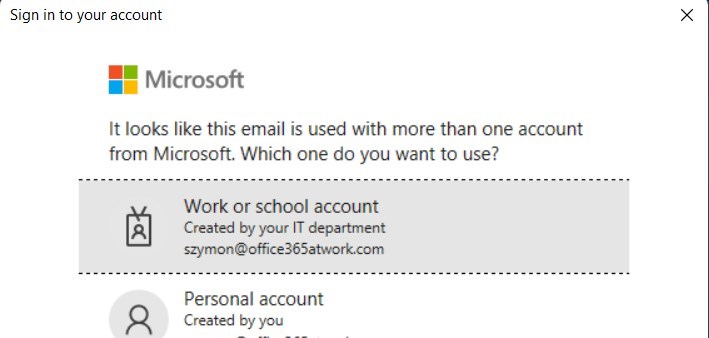
After you will paste your email address you should choose Work or school account.
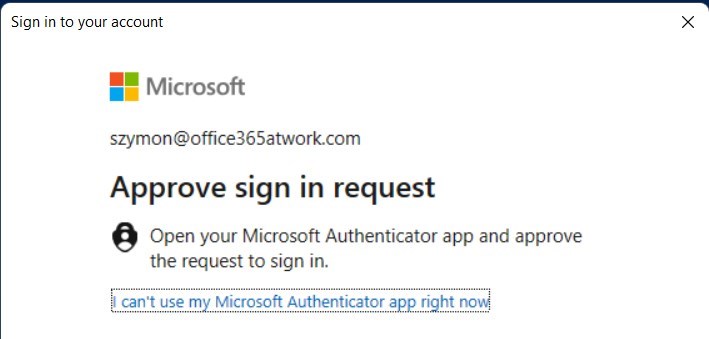
In this case, after you will use your password you will need to authenticate using MFA.
After the authentication process with MFA, you will be connected to the PowerShell shell and start to work on Microsoft Teams using cmdlets.
Resolve problems with connecting to Microsoft Teams PowerShell
Errors you can meet during the PowerShell connection to Microsoft Teams:
- This is the space where I will describe possible error messages with Connect-MicrosoftTeams command.
What’s next?
Perfect! You have lea
ed how to connect Office 365 app using PowerShell in Windows. Now is the time to get a better understanding of Microsoft 365 apps. Lea
how to use Power Automate flows, how to deploy and use Viva Connections and lea
how to test Teams call quality.
Do you want to lea
even more?
I prepared more articles that could help you better understand Power Automate, OneDrive, Microsoft Teams and Teams.
Conclusion
Lea
how to connect to Microsoft Teams using PowerShell in Windows 10/11. Use PowerShell Management Shell to automate the management of Microsoft Teams.
This blog post features as part of Microsoft Teams Week – you will find loads of expert Teams content there!
About the Author:
Microsoft 365 expert with 12+ years of experience working with enterprise organizations. Improving productivity and business processes in companies using Office 365 applications. Author of Microsoft 365 atWork blog and academy. In free time beekeper.
Reference:
Bochniak, S. (2022). Connect to Microsoft Teams PowerShell. Available at: https://office365atwork.com/teams/connect-to-microsoft-teams-powershell/ [Accessed: 12th September 2022]