






Configure Site Storage Notifications for Group Connected SharePoint Sites

Contents

Overview
In the previous article, we have explored Managing storage for your sites in Mode
SharePoint Online. Ideally site owners should receive the notifications by email when the site reaches the % storage limit specified in the configuration. This works well as expected for the Communication sites. However, it does not work out of the box for Group connected SharePoint sites.
In this article, we will explore why it does not work out of the box for Group connected SharePoint sites and the configurations to make it work.
Communication Site – Storage notification
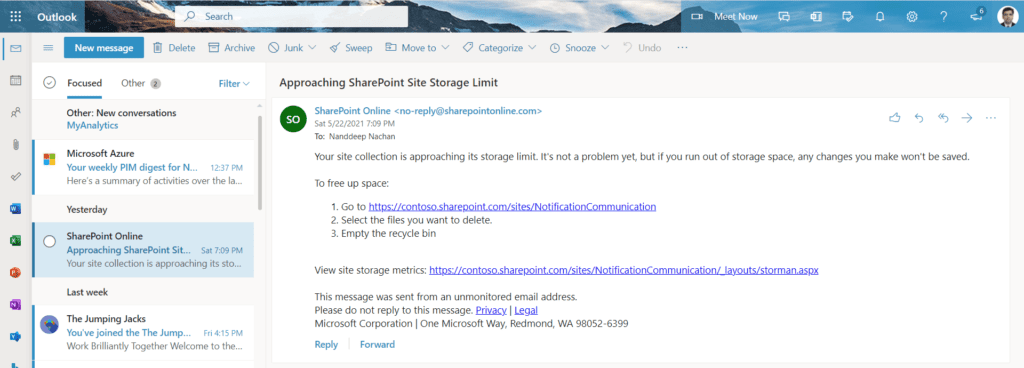
When the site storage notification is set on the Communication site, the owners receive an email notification as follows:
Group Connected SharePoint Site – Storage notification
The Group connected SharePoint (Team) site owners does not get this notification by default. These email notifications are sent by the timer job. The schedule is unknown but let us try to find out the cause with below facts at hand:
- The email notification is being sent from an email no-reply@sharepointonline.com
- We have tentative time window of email received for the Communication site.
Troubleshooting the email
We will carry out message trace to find more details and cause.
- Open Exchange online admin center.
- Under Mail flow, click Message trace.
- Click Start a trace.

- In the message trace,
- Specify the Sender as no-reply@sharepointonline.com
- Specify the O365 group email address as Recipients.
- Specify the time range based on the email received for Communication site.
- Specify the report type.
- Click Search.
Analyze the message trace for a potential cause. The error reported is as follows:
UnifiedGroupAgent; Delivery failed because the sender isn’t a group member or exte
al senders aren’t permitted to send to this group.
From the error, it is evident that Office 365 Group is not allowing exte
al senders (in our case no-reply@sharepointonline.com
Office 365 Group settings
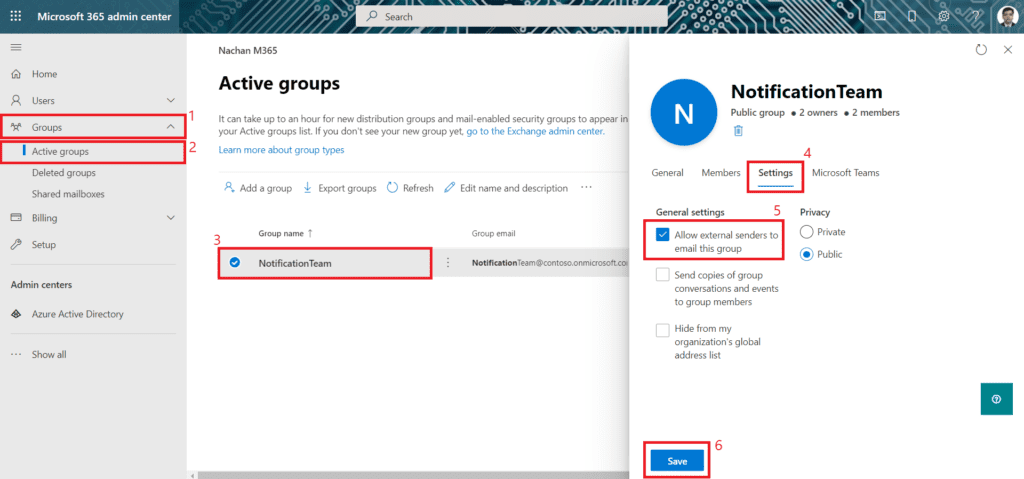
We need to ensure that emails from no-reply@sharepointonline.com to Office 365 Group are accepted. Follow below steps to configure Office 365 Group settings:
- Open Microsoft 365 admin center.
- From left menu, click Group > Active groups.
- Search and select the group.
- Click Settings tab.
- Under General settings, select Allow exte
al senders to email this group. - Click Save.
Summary
Storage notifications does not work out of the box for Group connected SharePoint sites. It needs some extra configurations at each Office 365 group level in order to make it work.
Reference
This blog is part of SharePoint Week. For more great content, click here
About the Author:
Microsoft MVP (Office Apps and Services) | Consultant – SharePoint, Office 365, MS Azure | Speaker | Author | Blogger | Trainer | CSM
Reference:
Nachan, N. (2021). Configure Site Storage Notifications for Group Connected SharePoint Sites. Available at: https://nanddeepnachanblogs.com/posts/2021-05-23-configure-storage-notifications-group-connected-spo-sites/ [Accessed: 13th September 2021].


