









Replace an owner in all their Teams

Contents
Microsoft Teams without an owner are no longer manageable, so what happens if some user leaves the company and he/she was an owner in several Teams?
Multiple owners
We always suggest at least one owner per Team and adding a “manager” account, an account that isn’t used for daily used, but can be accessed when the original owner is unavailable at that moment.
Using Graph PowerShell
These scripts use the new Graph PowerShell Modules, if you don’t have them already, be sure to install them prior to using any of these scripts.
Set-ExecutionPolicy -ExecutionPolicy RemoteSigned -Scope CurrentUser
Install-Module Microsoft.Graph.Teams -Scope CurrentUser
Install-Module Microsoft.Graph.Groups -Scope CurrentUser
List all Teams of a specific user
You can use this script to quickly list all the Teams a user is joined and whether or not he/she is an owner.
# Change accordingly
$tenantId = "21009bcd-06df-4cdf-b114-e6a326ef3368";
$userId = "613f5b2e-4360-4665-956b-ffeaa0f3014b";
# Switch to $true for CSV output
$csv = $false;
# Connect to Graph with correct scopes
Connect-MgGraph -TenantId $tenantId -Scopes "User.Read.All","GroupMember.ReadWrite.All"

$teams = Get-MgUserJoinedTeam -UserId $userId;
if ($csv) {
  Write-Host "Team;TeamId;IsOwner;"
}
foreach($team in $teams) {
  # Check if the user is an owner.
  # Can the check be made more efficient?
  $owners = Get-MgGroupOwner -GroupId $team.Id
  $isOwner = $true;
  foreach ($owner in $owners) {
    if ($userId -eq $owner.Id) {
      $isOwner = $true;
      break;
    }
  }
  if ($false -eq $csv) {
    Write-Host "Team: $($team.DisplayName) ($($team.Id)) owner: $($isOwner)"
  } else {
    Write-Host "`"$($team.DisplayName)`";`"$($team.Id)`";$($isOwner);";
  }
}
Replace owner in all owned Teams
This script is to replace/remove the user in all teams where he/she is an owner, and to add an alte
ative user. Change the ID’s accordingly.
# Change accordingly
$tenantId = "21009bcd-06df-4cdf-b114-e6a326ef3368";
$userId = "613f5b2e-4360-4665-956b-ffeaa0f3014b";
$altUser = "3c3b19fe-ea86-440a-a0ea-8fbce680a849";
# Connect to Graph with correct scopes
Connect-MgGraph -TenantId $tenantId -Scopes "User.Read.All","GroupMember.ReadWrite.All"

$teams = Get-MgUserJoinedTeam -UserId $userId;
foreach ($team in $teams) {
  # Check if the user is an owner.
  $owners = Get-MgGroupOwner -GroupId $team.Id
  $isOwner = $false;
  $altUserIsOwner = $false;
  foreach ($owner in $owners) {
    if ($userId -eq $owner.Id) {
      $isOwner = $true;
    }
    if ($altUser -eq $owner.Id) {
      $altUserIsOwner = $true;
    }
  }

  if ($isOwner) {
    if ($false -eq $altUserIsOwner) {
      Write-Host "Team: $($team.DisplayName) adding owner ($($altUser))";

      # First add the alte
ative user as Owner and Member (needed for Teams...)
      New-MgGroupOwner -GroupId $team.Id -DirectoryObjectId $altUser -ErrorAction SilentlyContinue
      New-MgGroupMember -GroupId $team.Id -DirectoryObjectId $altUser -ErrorAction SilentlyContinue
    } else {
      Write-Host "Team: $($team.DisplayName) alt. user ($($altUser)) already an owner";
    }

    Write-Host "Team: $($team.DisplayName) removing owner ($($userId))";
    # Then remove the user from the Team
    Remove-MgGroupOwnerByRef -DirectoryObjectId $userId -GroupId $team.Id -ErrorAction SilentlyContinue
    Remove-MgGroupMemberByRef -DirectoryObjectId $userId -GroupId $team.Id -ErrorAction SilentlyContinue
  }
}
You can check these changes in the audit log and should see something like this.
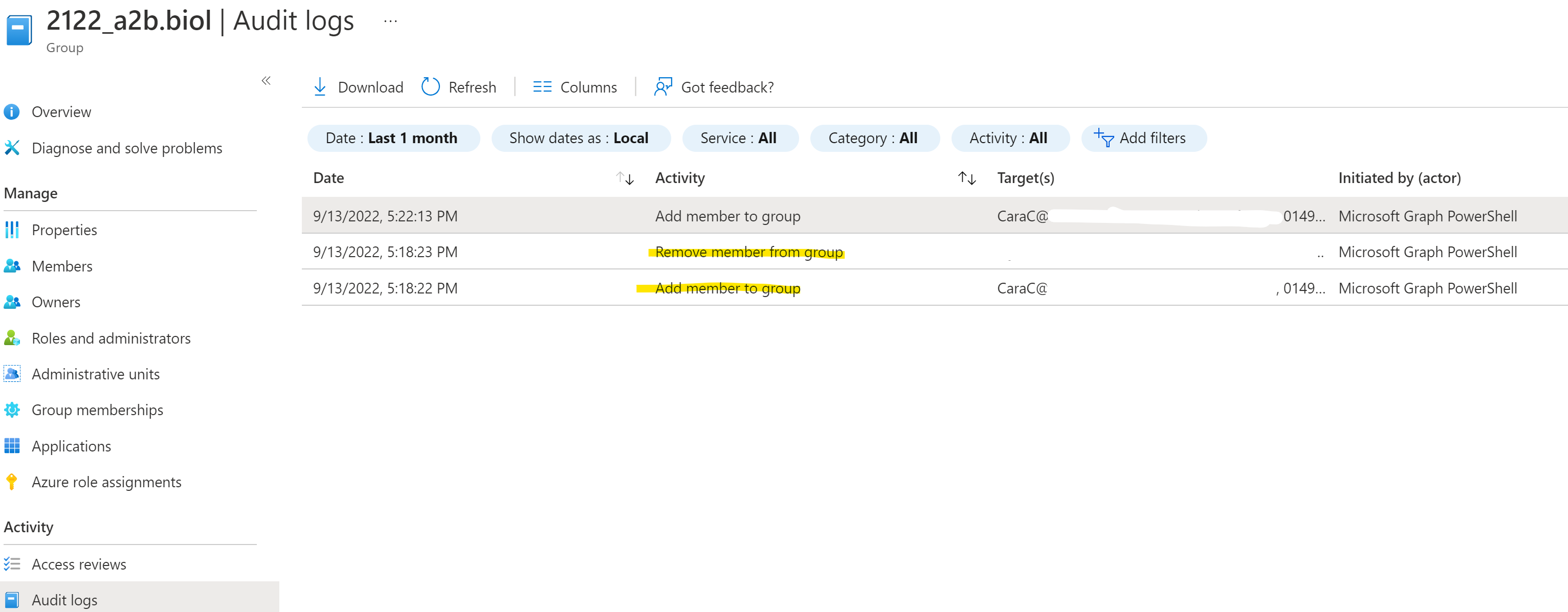
Audit log
This script is very useful to quickly manage all the teams the leaving employee was an owner of. Since changing group memberships can be a highly sensitive operation, all the details are logged in the Azure AD Audit log.
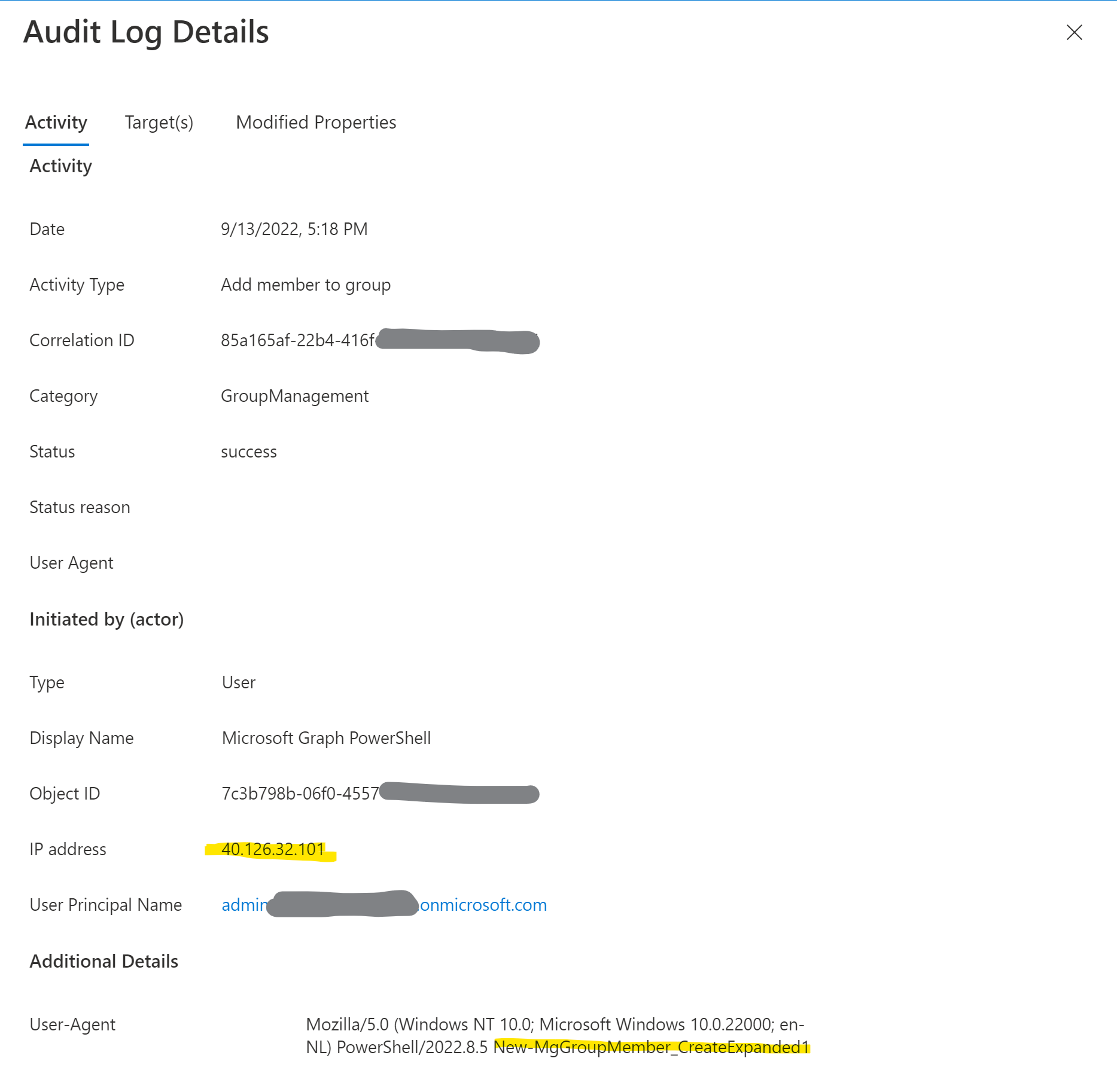
It shows the application name Microsoft Graph PowerShell, that this was actually a user logging in (and not using client credentials), the Object ID of the user who executed the request. In the user agent Mozilla/5.0 (Windows NT 10.0; Microsoft Windows 10.0.22000; en-NL) PowerShell/2022.8.5 New-MgGroupMember_CreateExpanded1 you can even see which command I used and the version of the module (I guess).
But is also shows an IP, which is NOT the IP that was used to send the command. My best guess is that this is the IP of the Graph API backend server processing my request.
Microsoft Teams Week has arrived! Lea
More.
Application not by a trusted publisher?
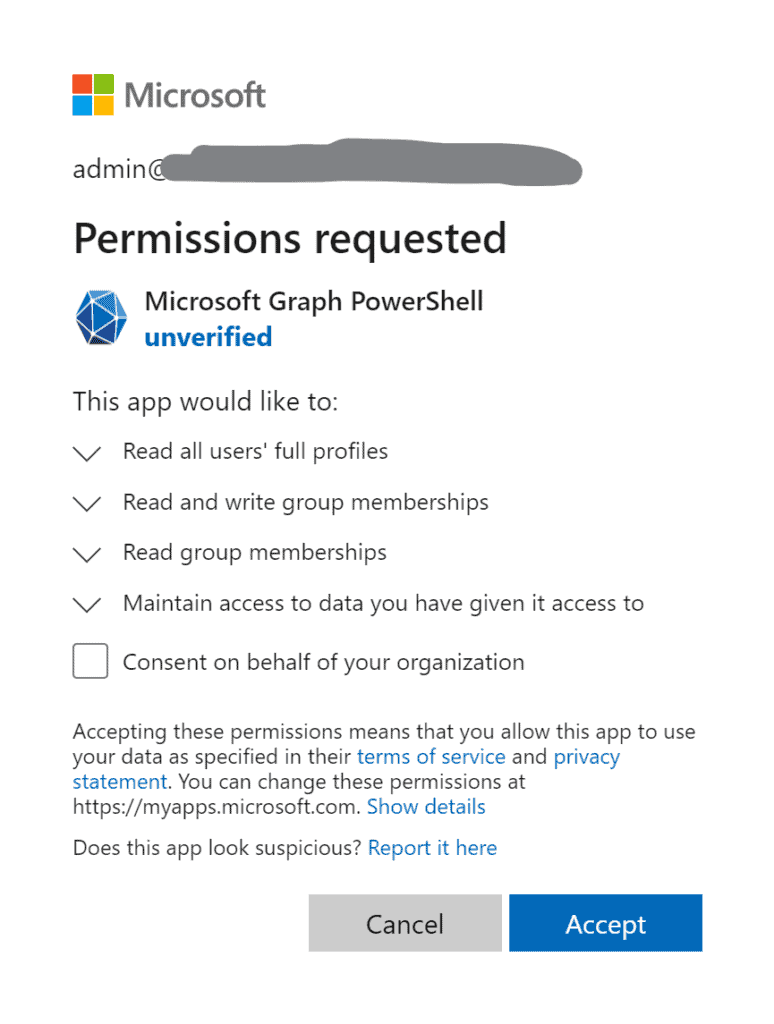
When executing the Connect-MgGraph command above, you’re prompted to consent to the application in the default browser. And depending on the tenant configuration you might not be allowed to consent it yourself. Ask the global admin to do that for you.
The consent screen displays the name Microsoft Graph PowerShell and that it’s from an unverified publisher? Does that mean it’s not to be trusted? You should decide yourself, I guess the module is created by Microsoft, but not configured correctly. It also lists the permissions you’re requesting this time. If you previously consented to this application, the login screen is not even shown and you’ll be redirect immediately.
About the Author
Microsoft MVP in Security, blogger, speaker and software architect the rest of the time
Reference
Van Rooij, S., 2022, Replace an owner in all their Teams, Available at: https://svrooij.io/2022/09/13/replace-teams-owner/#post [Accessed on 14 March 2023]
Tags
trending posts


